

Getting Started with LLM Integration
You can integrate Super Markdown with various LLM models available on the market in a very simple way, without the need for complex configurations. The goal is to generate content using different LLM models while fully respecting the new syntax of Super Markdown components. This enables you to produce professional and elegant documents, offering your readers a pleasant and high-quality reading experience.
Super Markdown includes a dedicated feature called "LLM Areas", which allows you to use your preferred LLM models to generate responses and content directly in Super Markdown. It provides an intuitive interface for previewing the generated content, along with complementary tools to edit the resulting Markdown. Once finalized, you can store the final rendered output as a document within the platform.
First Setp: Creating a new Application
To create your first application, go to the "For developers" page, then click the "Add" button. A dedicated popup will open, similar to the screenshot above:
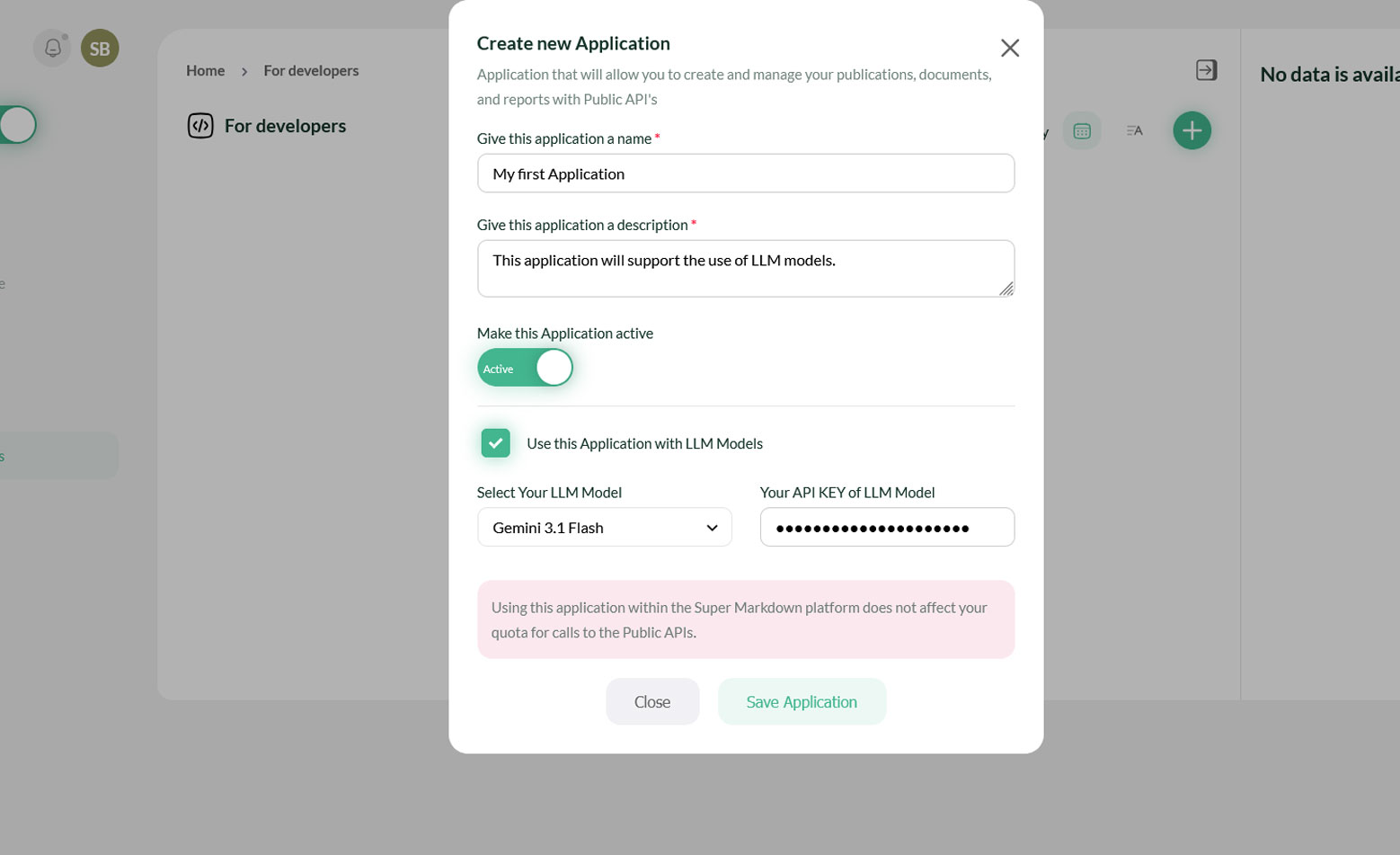
Once you've created your application and enabled its use by LLM models, simply go to the "LLM Areas" section of Super Markdown. From there, you can fully use your application by connecting your favorite LLM models to easily generate rich, structured content.
LLM Areas
The "LLM Areas" section allows you to generate content using your favorite LLM models, with a real-time preview integrated into the platform. This approach lets you intuitively preview the final output produced by your LLM models before any approval. Additionally, extra tools are available to allow you to edit the generated content or download it in your preferred format.
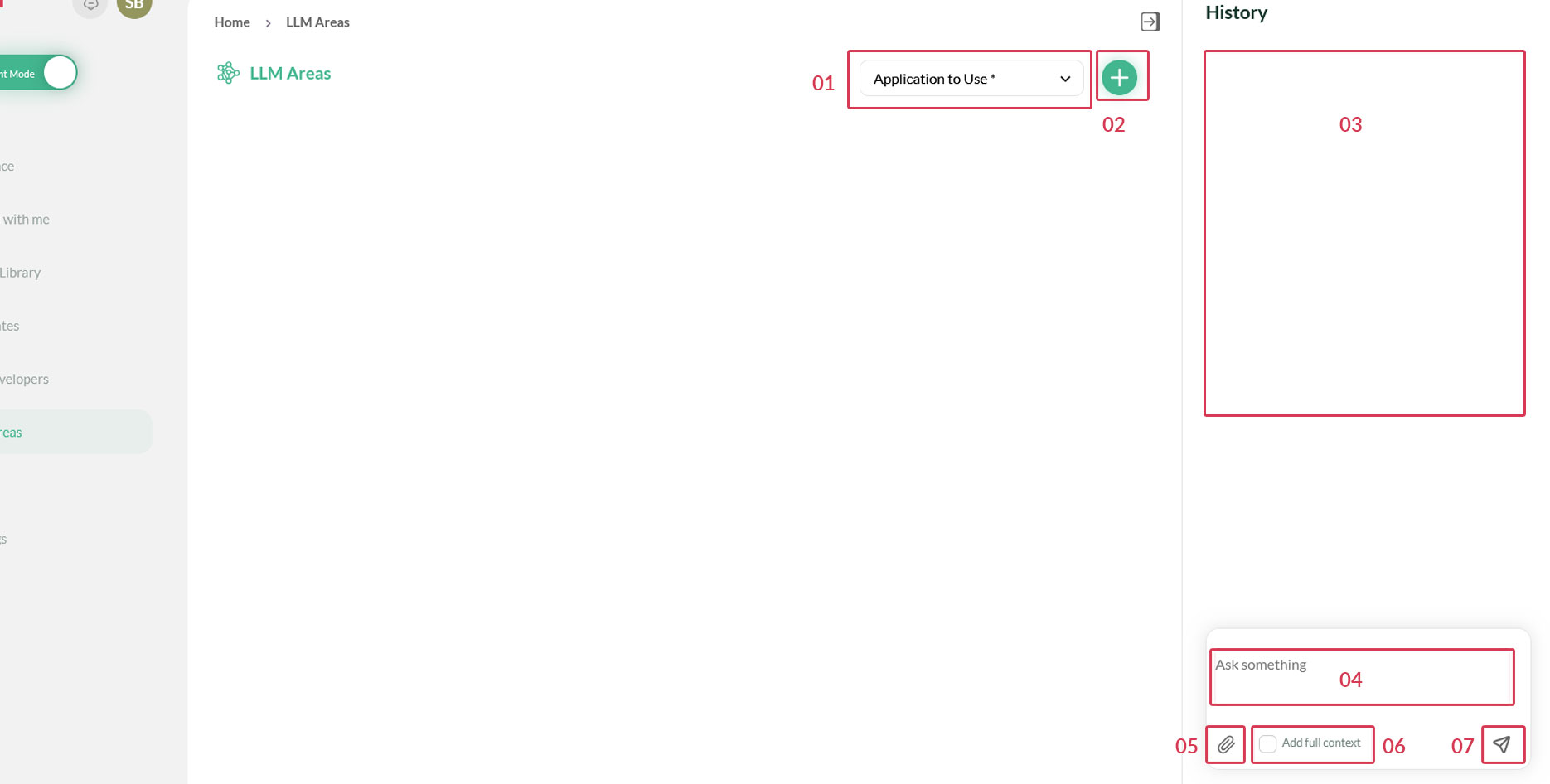
- 01. The Application : It connects to your LLM model and uses it to generate content.
- 02. Create a new chat : Start a new conversation.
- 03. Conversation history : View all your past conversations.
- 04. Your prompt : Enter the request you want to send to the LLM model.
- 05. Add attachments : Attach documents to enrich your request.
- 06. Include full context : This option sends the entire context with each prompt.
- 07. Send your prompt : Send your request to the LLM model to generate a response.
What's Next ?
- AI Agent Support : Getting Started with AI Agent Support
- Advanced Usage : Learn more about custom templates and Reuse them.
- Best Practices : Tips for building professional documents at scale
Need help ? Our team is here to support you. Contact us or check our FAQ.