

Getting Started with AI Agent Support
Integrating support for artificial intelligence agents is now essential for any application that wants to keep pace with the evolving use of AI tools in daily workflows. To address this trend, Super Markdown offers its users easy-to-implement support specifically designed for AI agents. The goal is to enable everyone to fully leverage the advantages these agents offer.
We have also implemented an Agent Connectivity Model (MCP) server, which you can connect to your own work environment. This allows you to easily create and edit high-quality Markdown documents, whatever your purpose: articles, reports, dashboards, scientific publications, or even a simple web page. The end result is modern, professional, and visually appealing.
Our "agentic" tools are designed to add an extra layer to your AI workflow, helping you refine your daily work with increased efficiency.
First Setp: Creating a new Application
To create your first application, go to the "For developers" page, then click the "Add" button. A dedicated popup will open, similar to the screenshot above:
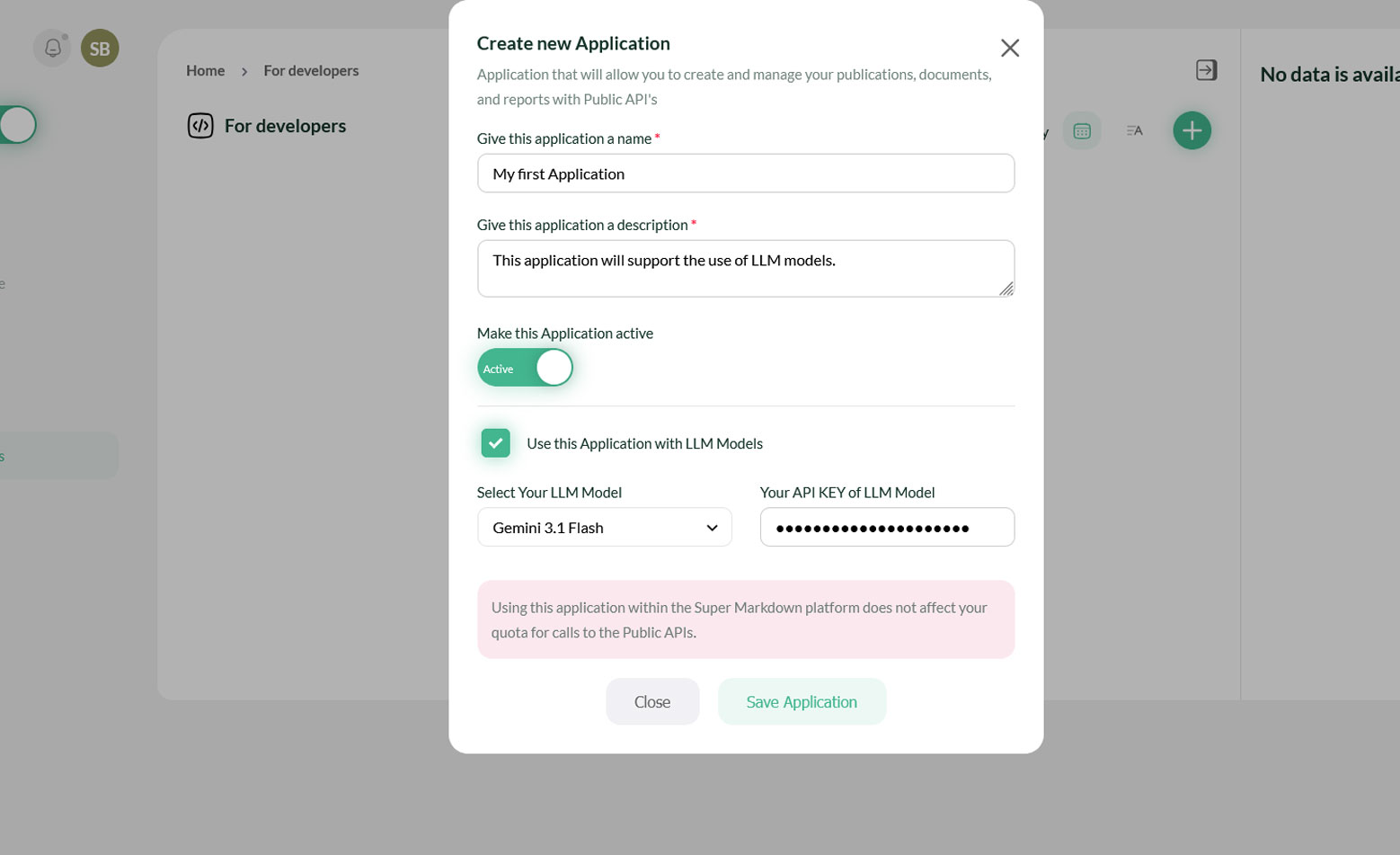
Once you've created your application and enabled its use by LLM models, simply go to the "LLM Areas" section of Super Markdown. From there, you can fully use your application by connecting your favorite LLM models to easily generate rich, structured content.
Agentic API
We offer several particularly useful APIs to help you connect or configure your agents with Super Markdown. Their main objective is to simplify integration as much as possible by reducing the technical complexity usually associated with this type of connection.
1. API for retrieving tools needed by AI agents
This first API returns all the tools that AI agents need to create and edit Markdown documents without errors. With it, our system generates valid Super Markdown code, ready to be compiled to produce an elegant and professional output.
You will find the technical details of this API below.
2. Conversion to Super Markdown
Once your agent has generated results using its internal tools (LLM responses, analyses, data extracts, etc.), you can submit them to our conversion API. Our system then handles:
- Validating the consistency of the received data;
- Transforming these results into a syntactically correct Super Markdown structure;
- Preparing everything for final compilation.
This API is designed for users who can modify and edit the Super Markdown code generated by their agents before final compilation. Sometimes users might want to change the layout, color schemes, themes in certain sections, or remove unnecessary content. This API is for them.
3. Rendering and storage API
We also offer an API that allows you to request the system to render the tools generated by the LLM models, in order to obtain the HTML code of the desired document. This API also offers the possibility of storing the final output directly in a Super Markdown document on our platform, thus ensuring sustainable and centralized management of your outputs.
Details of this second API are also available below.
- 01. save: This option allows you to save the generated document in the Super Markdown platform.
- 02. document_name : It's the name you want to give to your document.
- 03. parent : It's the name of the folder where you want to save your document.
4. All-in-One API
This API was designed to simplify the entire workflow into a single call to our system. It automatically handles:
- connecting to the LLM model you configured in your application,
- generating the tools needed to process the request,
- converting the results into a ready-to-use Super Markdown document.
An additional advantage of this API compared to others is that it stores all interactions as conversations directly accessible from the Super Markdown platform.
5. Retrieve the complete history or a specific message from your conversations
This API aims to enable the retrieval of data from conversations stored on our platform. It provides two main data access options, organized according to two levels of granularity:
- Full retrieval: you can obtain the entire history of a given conversation.
- Targeted retrieval: you can extract a specific message from the history of a conversation.
- REFERENCE_CONVERSATION: The reference of the conversation you want to retrieve.
- UID_MESSAGE: The UID of the message you want to retrieve, this parameter must be set to "-".
MCP Server
The documentation is comming soon.
What's Next ?
- LLM Integration : Getting Started with LLM Integration
- Fréquents Questions : A collection of frequently asked questions related to the platform
- Super Markdown API : TGetting Started with Super Markdown API
Need help ? Our team is here to support you. Contact us or check our FAQ.